What Is an On Air Screen in a Broadcast Studio?
A presenter sees a red microphone light, a producer sees a countdown, and the newsroom sees whether the studio is live. What is an on air screen in that situation? It is the shared visual layer that turns technical broadcast status into information people can understand at a glance. When every second matters, clear status on a visible display prevents interruptions, late cues, and avoidable on-air mistakes.
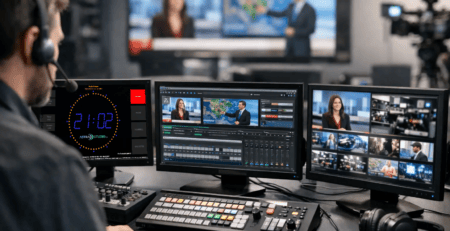
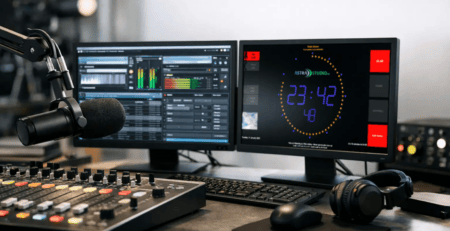
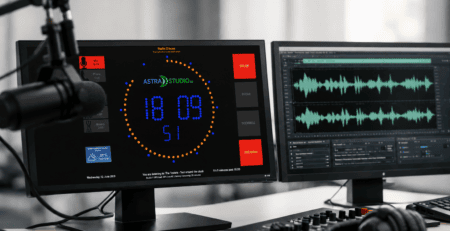
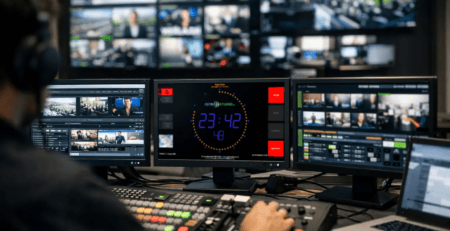
An on air screen is a configurable display used in radio, television, podcast, streaming, and production studios. It can show that a program is live, display a timer or clock, indicate microphone states, present a countdown to the next event, and deliver operational messages to the team. Depending on the setup, it may also show the current title, the next title, weather information, program branding, or data from automation and control systems.
The screen is not simply a decorative monitor. Its purpose is to give presenters, producers, guests, and technical staff the same current picture of the broadcast operation without requiring everyone to look into a control application or ask for confirmation.
What Is an On Air Screen Used For?
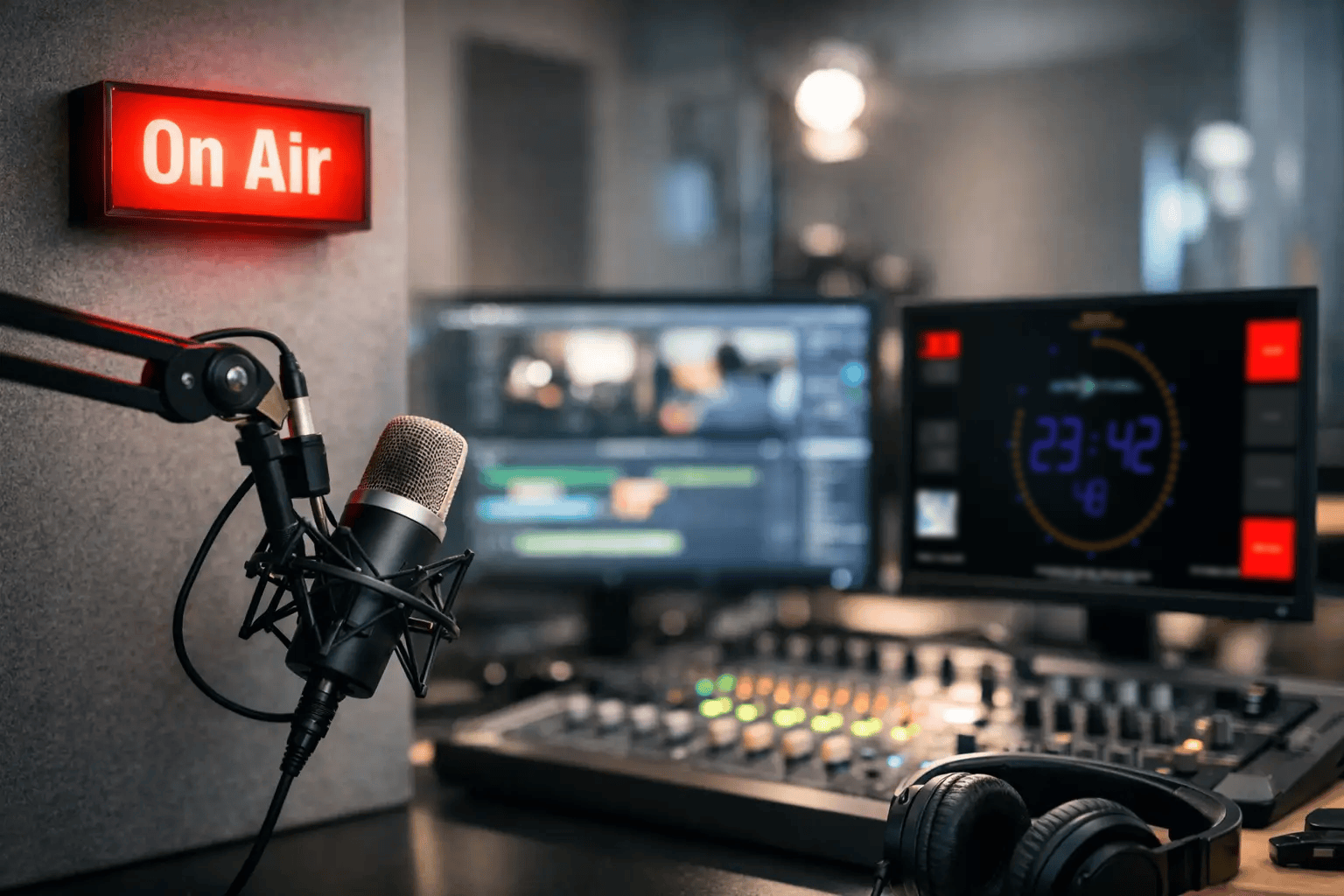
The most familiar use is the large red ON AIR message outside or inside a studio. This remains valuable because it gives a direct warning: do not enter, interrupt, or create unnecessary noise. In professional operation, however, an on air screen can do substantially more.
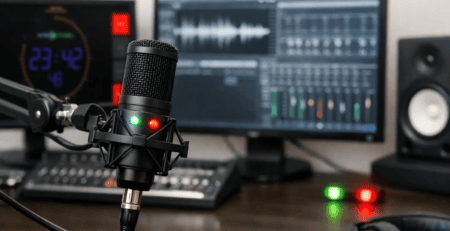
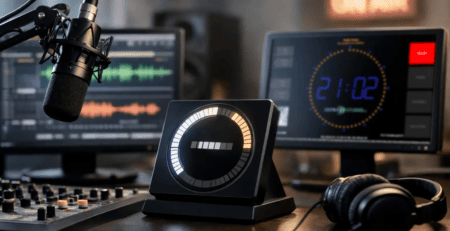
Inside the studio, a display can show the exact live state of a microphone channel. A presenter can immediately see whether their microphone is on, while a guest can understand when they are expected to speak. In a larger facility, a shared screen can show whether Studio A, Studio B, or a voice booth is currently live.
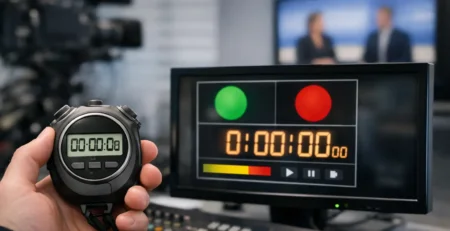
Timers are another common use. A count-up timer can show elapsed talk time, while a countdown can show the remaining duration of a break, a live hit, a news bulletin, or a program segment. This is particularly useful when the presenter must hit a hard network time, join a stream at a precise moment, or hand back to a producer without verbal prompting.
For music radio and web radio, title information is also useful. The current track, next track, artist, and scheduled element can be displayed where the talent can see them. That reduces uncertainty during back-announcements and makes it easier to prepare a clean transition. The best setup depends on the workflow: a small streaming studio may need only a clock, live state, and track title, while a production room may require multiple timers, status fields, and cue messages.
How an On Air Screen Improves Studio Operation
Broadcast work depends on communication, but not every message should be spoken. A producer cannot always interrupt a host who is live. A technician may be managing several rooms. In remote or lightly staffed operations, there may be no producer in the room at all. A visible, automatically updated screen keeps essential information available without adding chatter to talkback channels.
This has a practical effect on timing. If a presenter can see that 42 seconds remain before a fixed top-of-hour news feed, they can end a discussion naturally instead of receiving an abrupt cue. If the timer is visible to everyone, the producer, operator, and host are working from the same reference. That shared reference is often more useful than a complex control-room display that only one person can access.
It also supports studio discipline. A clear microphone status display reduces the chance that someone assumes a mic is muted when it is live. A prominent on-air indicator helps protect the audio environment outside the room. For guest-facing studios, simple visual cues are more effective than expecting visitors to understand the broadcast console.
There is a trade-off. Too much information can make a screen less useful. A display packed with small labels, technical metrics, and constantly changing data becomes another source of distraction. The strongest on air screens prioritize the information needed in that location. The screen in a hallway should be simple and unmistakable. The screen facing a presenter can be more detailed. The control-room version may show several sources and operational states.
Typical Information on an On Air Screen
The exact layout should reflect the role of the display, but common elements include:
- On-air, off-air, recording, and standby status
- Microphone states for one or more channels
- Time of day, elapsed timer, stopwatch, and countdown
- Current and upcoming track or playlist data
- Program name, studio name, station branding, and custom notices
- Weather, production cues, and system messages
A screen can also change its color or layout according to the state of the operation. Red may indicate live transmission, green may indicate ready or available, and amber may indicate a pending cue or countdown. Color is effective, but it should not be the only signal. Text labels and large icons make the status clear for people viewing the display from a distance or at an angle.
From a Simple Red Light to a Data Display
A conventional on-air light answers one question: is this room live? An on air screen can answer that question while also showing why, for how long, and what happens next. That makes it especially useful in modern workflows where playout, streaming, remote contribution, video switching, and studio automation may all be connected.
The goal is not to replace every control surface with a television-style dashboard. The goal is to put the right status in the right place. A wall display in the studio may need large countdown digits. A compact screen near a door may need only a red live warning. A confidence monitor can show title data, timing, and a message from the producer.
Integration Matters More Than Screen Size
An on air screen is only as useful as the data it receives. Manual updates can work for temporary productions, but they introduce delay and depend on someone remembering to change the display. For regular broadcast operation, automatic integration is usually the better choice.
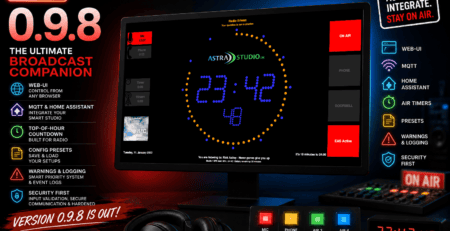
A flexible solution can receive data from playout software, broadcast consoles, GPIO contacts, microphone logic, automation systems, and custom control applications. Common interfaces such as HTTP, UDP, multicast, MQTT, Home Assistant integration, and GPIO make it possible to connect the display to existing infrastructure instead of rebuilding the workflow around a single vendor.
For example, a microphone logic signal can trigger an ON AIR message immediately. A playout system can send the current and next track title. A producer application can set a custom text field for a breaking-news cue. An automation event can start a countdown before a network join. These functions can run independently or together, depending on the studio design.
This flexibility matters when systems evolve. A station may begin with one studio and a simple audio console, then later add remote production, additional studios, or IP-based control. A display platform that supports several interfaces can remain useful through those changes. It also enables tailored implementations when standard integration is not enough.
Choosing the Right Setup for Your Studio
Start with the viewing position, not the software feature list. Ask who needs to see the information, how far away they will be, and what decision they need to make from it. A presenter needs readable timing and mic state. A person outside the room needs a clear live warning. A producer may need more context, including track data and upcoming events.
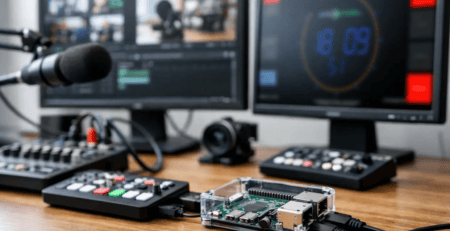
Then consider the operating system and hardware already in use. An on air screen may run on a Windows, Linux, macOS, or Raspberry Pi OS device. Raspberry Pi-based deployments are often attractive for dedicated screens because they are compact, economical, and easy to place near a studio door, in a rack, or behind a monitor. A preconfigured microSD image can also reduce setup time when several displays must be deployed consistently.
Reliability should take priority over visual effects. A screen must start automatically after a power interruption, reconnect to its data sources, and remain legible under studio lighting. It should be possible to adjust branding, colors, fonts, and layouts without turning every small change into a development project. At the same time, a custom workflow may justify tailored software when it provides clearer operational value.
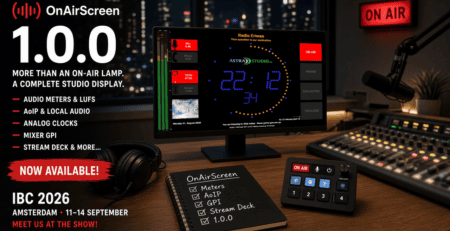
astrastudio OnAirScreen is designed for this practical range of requirements: from a dedicated on-air indicator and timer to a configurable studio display connected to broadcast, automation, and control data.
A Display That Supports Better Decisions
The best on air screen is not the one with the most widgets. It is the one that lets the person in front of it act correctly without stopping to interpret the situation. When live state, timing, microphone status, and program information are visible where they are needed, the studio becomes quieter, more coordinated, and easier to run under pressure.
Start with the moments where people currently ask, wait, or guess. Those are the moments an on air screen can turn into clear, immediate visual information.