OnAirScreen 0.9.8 — Our Biggest Release Yet
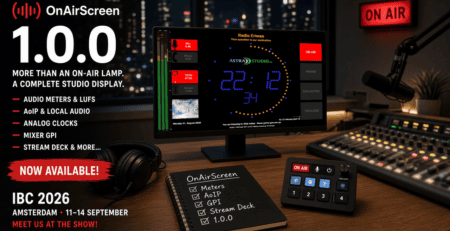
OnAirScreen 0.9.8 is out — and this is a big one.
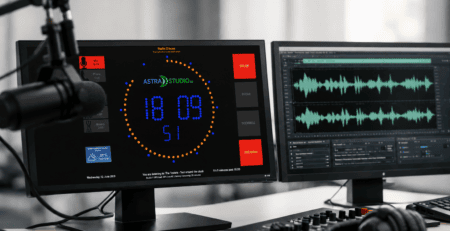
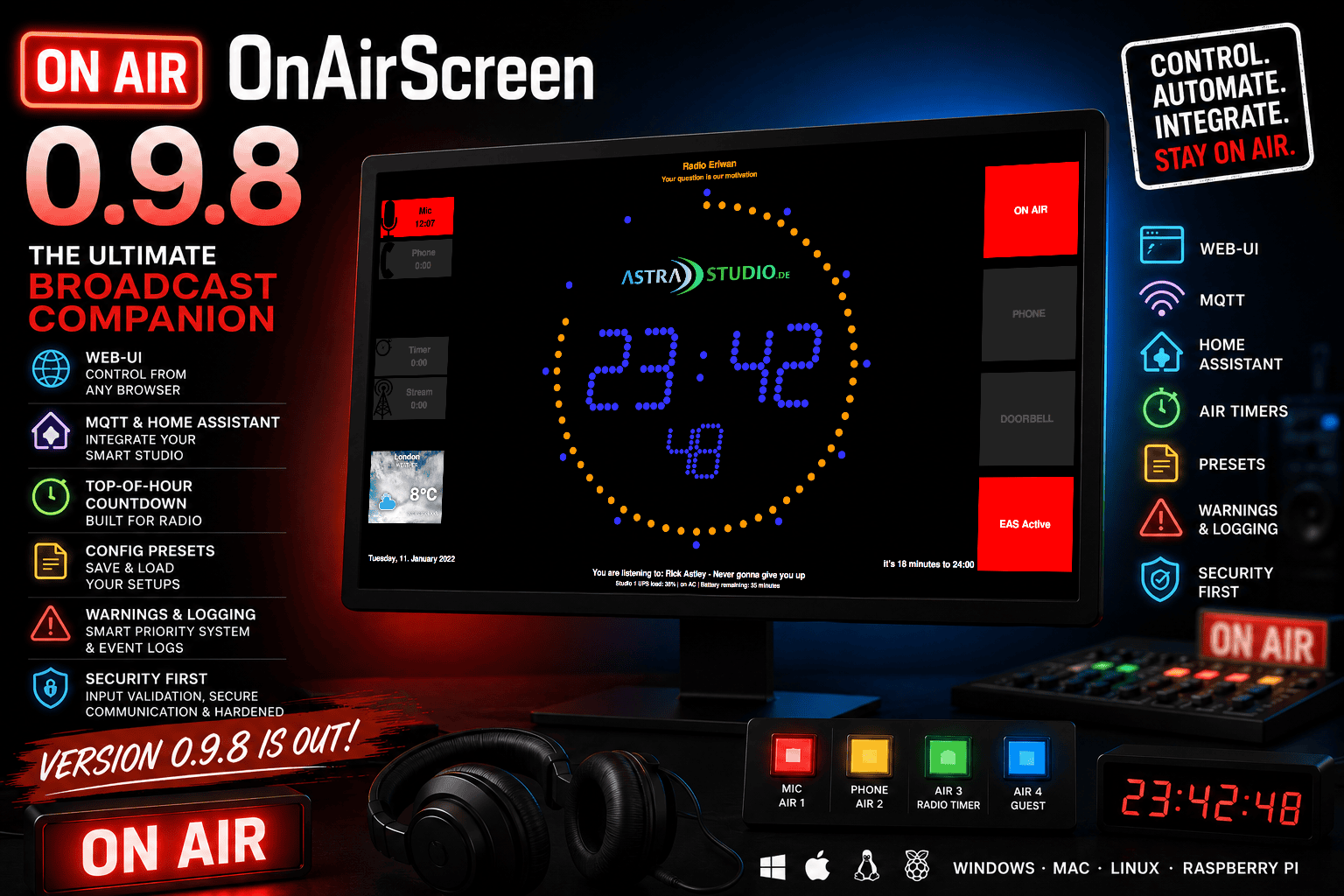
If you’ve been running OnAirScreen for a while, you know it as a reliable on-air lamp and studio display. With version 0.9.8, it becomes something more: a fully connected broadcast companion you can control from your browser, automate via MQTT, and integrate into Home Assistant — all while keeping the same look and feel your studio already depends on.
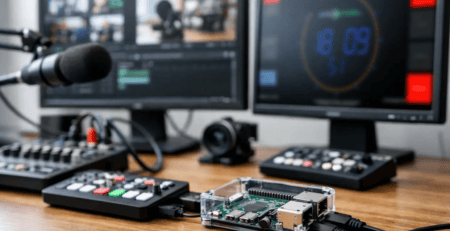
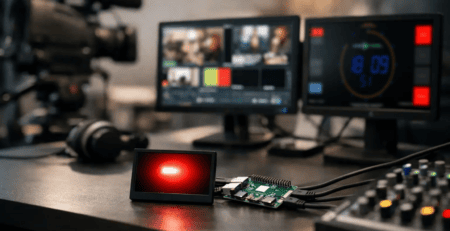
Since version 0.9.6, hundreds of commits have gone into this release. Remote control, smart home integration, studio workflow tools, security hardening, and a complete internal overhaul. Whether you run OnAirScreen on a studio PC, a Mac in the control room, or a Raspberry Pi behind the monitor — if you’ve been waiting to upgrade, now is the time.
What’s New at a Glance
- Web-UI — full remote control from any browser, with real-time WebSocket updates
- MQTT & Home Assistant — LEDs, timers, text fields, and reset buttons as smart home entities
- Top-of-Hour countdown — wall-clock synchronized countdown on the Radio Timer (AIR3)
- Configuration presets — save and load complete setups as JSON profiles
- Warning priority system — NTP, normal, medium, and high-priority warnings
- Event logging — track every command, timer event, and state change
- 580+ unit tests — a dramatically more robust and maintainable codebase
- Full user manuals — in English and German
Control Your Studio From Any Browser
The Web-UI is the headline feature of this release. Open any browser on your network, point it at your OnAirScreen instance, and you have full remote control:
- Live status for all LEDs, AIR timers, and NOW / NEXT / WARN text fields
- One-click LED toggles and AIR timer start/stop controls
- Text input for NOW, NEXT, and WARN — with clear buttons
- Reset buttons for AIR3 and AIR4
- Dark Mode with saved preference — no flash of light mode on reload
Status updates arrive in real time via WebSocket — no polling, no refresh button, no lag. If the connection drops, a modal dims the interface and disables controls until you’re back online.
The layout has been redesigned for studio use: compact status rows, timer labels (Mic, Phone, etc.) shown directly on buttons, and NOW/NEXT fields side by side.
Two REST endpoints power integrations and custom tools: /api/status and /api/command.
MQTT & Home Assistant — OnAirScreen Joins Your Smart Studio
Studios running Home Assistant or any MQTT broker can now integrate OnAirScreen natively:
- LED switches (LED1–4) — on/off from anywhere
- AIR timer switches (AIR1–4) — start and stop remotely
- AIR timer sensors — elapsed time in seconds
- Reset buttons for AIR3 and AIR4
- Text entities for NOW, NEXT, and WARN
- Home Assistant Autodiscovery — devices appear automatically, no manual YAML
MQTT reconnects automatically and re-publishes autodiscovery on reconnect. Configure server, port, credentials, and device name in the settings dialog — MQTT is off by default, so nothing changes until you enable it.
Top-of-Hour Countdown — Built for Radio
Radio producers know the moment: the clock hits :00 and the next hour begins. The new Top-of-Hour countdown on the Radio Timer (AIR3) shows exactly how much time remains until the next full hour — synchronized to the system clock, displayed as M:SS (e.g. 22:38).
Press the T hotkey, hit the Web-UI button, send AIR3TOH:TOGGLE via UDP or HTTP, or trigger it from Home Assistant via MQTT. Press again to stop and reset to 0:00.
While active, the status API reports "topOfHour": true — useful for automation and monitoring.
Smarter Warnings, Easier Configuration
Warnings now support four priority levels: NTP (blue, shown only when no higher-priority warning exists), Normal, Medium, and High. Send them via WARN:Prio:Text, dismiss them with the X button in the Web-UI, and query the full warnings array via the status API.
Configuration presets let you save your entire OnAirScreen setup as a JSON file and reload it with one click — perfect for switching between shows, stations, or deployment profiles.
A new event logging system records LED changes, timer events, incoming commands, and system events. Log level is configurable in settings (DEBUG through NONE) or overridable via --loglevel on the command line.
Bug Fixes Worth Mentioning
Alongside the major features, a long list of annoyances has been squashed:
- Text clock in 24h mode — no more “12 minutes to 16”; the spoken form now correctly says “12 minutes to 4”
- Digital clock second LEDs — repaint aligned to wall-clock seconds, eliminating visible lag at rollover
- Web-UI — LED toggle status updates, Autoflash blinking, and PyInstaller template path all fixed
- Weather widget — no more API calls when disabled or without an API key
- Stability — crash on empty UDP/HTTP ports fixed, PyQt6 compatibility improved, MQTT reconnect logic hardened
Under the Hood
For the technically curious: start.py was slimmed from ~1,700 to ~1,400 lines by extracting dedicated modules for NTP, UI updates, hotkeys, logging, status export, and more. A central defaults.py holds all default values. A unified error handling system with custom exceptions makes debugging far easier. Input validation and sanitization protect all network commands. And 580+ unit tests now guard the codebase.
None of this changes how OnAirScreen looks on air. But it changes how confidently you can run it.
Upgrade Notes
- Your existing settings are fully compatible — no migration needed
- Web-UI:
http://<your-host>:8010/(default HTTP port) - MQTT: disabled by default — enable in Settings if you want it
- Presets: saved as JSON files alongside your settings
Ready-to-run binaries for Windows, Mac, and Linux — plus Raspberry Pi images — are available at astrastudio.de/shop.
Full documentation:
Thank You
OnAirScreen 0.9.8 is the result of years of feature requests, bug reports, beta testing, and real-world studio use. Thank you to everyone who reported issues, tested early builds, and kept this project alive.
Happy broadcasting!
— Sascha Ludwig
astrastudio.de · github.com/saschaludwig/OnAirScreen
OnAirScreen is open source. If you find it useful, consider supporting the project via PayPal, Buy Me a Coffee, or Ko-fi.